 Abstract27
How to Migrate from WordPress to Ghost CMS

On this page
- Client case studies
- Introduction
- What is Ghost?
- Why migrate from WordPress to Ghost?
- 1. Modern technology and performance
- 2. Focus on content and monetisation
- 3. Simplicity and customisation
- 4. Reduced maintenance
- How do you migrate from WordPress to Ghost CMS?
- 1. Choose your migration method
- 2. Export your WordPress content
- 3. Organise and prepare your images
- 4. Import the content into Ghost
- 5. Adapt the URLs and configure your domain
- 6. Carry out the final checks
- How do you set up your new Ghost site after the migration?
- 1. Configure the basic settings
- 2. Customise your site theme
- 3. Set up your pages and navigation
- 4. Enable the monetisation and subscription features
- 5. Connect analytics tools and integrations
- 6. Set up redirects and SEO
- FAQ: Migrating from WordPress to Ghost CMS
- Conclusion
We'll migrate your site for you from €29 / month
Client case studies
[WordPress to Ghost migration: How APAR.TV saved its media outlet with a complete redesign
Discover how migrating more than 8,000 articles from WordPress to Ghost transformed APAR.TV from a slow, ad-saturated site into a high-performing, profitable media outlet. A full case study of this successful digital transformation.
 Abstract 27 | French web communications agency, based in LondonJérémie Raude-Leroy
 ](/portfolio)[WordPress to Ghost CMS migration for Mozeact: Regaining digital independence and simplifying content management
Discover how Abstract27 transformed Mozeact's website by migrating from WordPress to Ghost CMS, allowing the consulting firm to regain complete digital independence. No more database headaches and no more reliance on external developers!
 Abstract 27 | French web communications agency, based in LondonJérémie Raude-Leroy
 ](/portfolio)
Introduction
A conflict recently broke out between WordPress and WP Engine, revealing the complexities of an ecosystem that has become heavy and, at times, chaotic.
After scathing criticism from Matt Mullenweg, the founder of WordPress, who accused WP Engine of undermining the platform's integrity by removing certain key features, WP Engine was ultimately banned from using the WordPress trademark.
This dispute highlights the challenges that large platforms can pose, where internal tensions end up affecting end users.
For those looking for a simpler, faster alternative, Ghost stands out as a modern option, optimised for content creation.
This CMS, built on Node.js, offers fast loading times and distraction-free content management, with monetisation tools built in by default.
This article will help you migrate easily and quickly from WordPress to Ghost CMS.
What is Ghost?
Ghost is an open-source platform designed specifically for content creators, bloggers, small businesses and independents who want a simple, fast and high-performing solution.
Unlike WordPress, which is often weighed down by extra features, Ghost focuses on the essentials: a smooth, distraction-free publishing experience.
Why migrate from WordPress to Ghost?
Migrating from WordPress to Ghost offers plenty of benefits for content creators.
Here are the main reasons Ghost stands out:
1. Modern technology and performance
Built on Node.js, Ghost is designed to be robust and lightning-fast. Unlike WordPress, which is based on PHP — an older, less performant language — Ghost benefits from an architecture optimised for shorter loading times and better resource management.
2. Focus on content and monetisation
Ghost isn't limited to content creation. It's built to make it easy to create and monetise audiences and communities. By default, Ghost includes essential tools such as newsletters, paid memberships and payment gateways — everything you need to engage and monetise your audience without resorting to extra plugins.
3. Simplicity and customisation
With Ghost, customisation is easy. The platform offers modern themes that are simple to adapt to your brand without advanced technical skills. Compared with WordPress, which often requires heavy configuration with plugins, Ghost makes setup quick and intuitive.
4. Reduced maintenance
Ghost is designed to minimise maintenance. Unlike WordPress, where updates and plugin management are constant, Ghost requires less technical upkeep. With managed hosting, the focus stays on creating content while the technical maintenance is taken care of.
By choosing Ghost, you opt for a modern platform that makes monetisation easy and offers a fast, streamlined publishing experience — ideal for creators looking to grow their audience.

How do you migrate from WordPress to Ghost CMS?
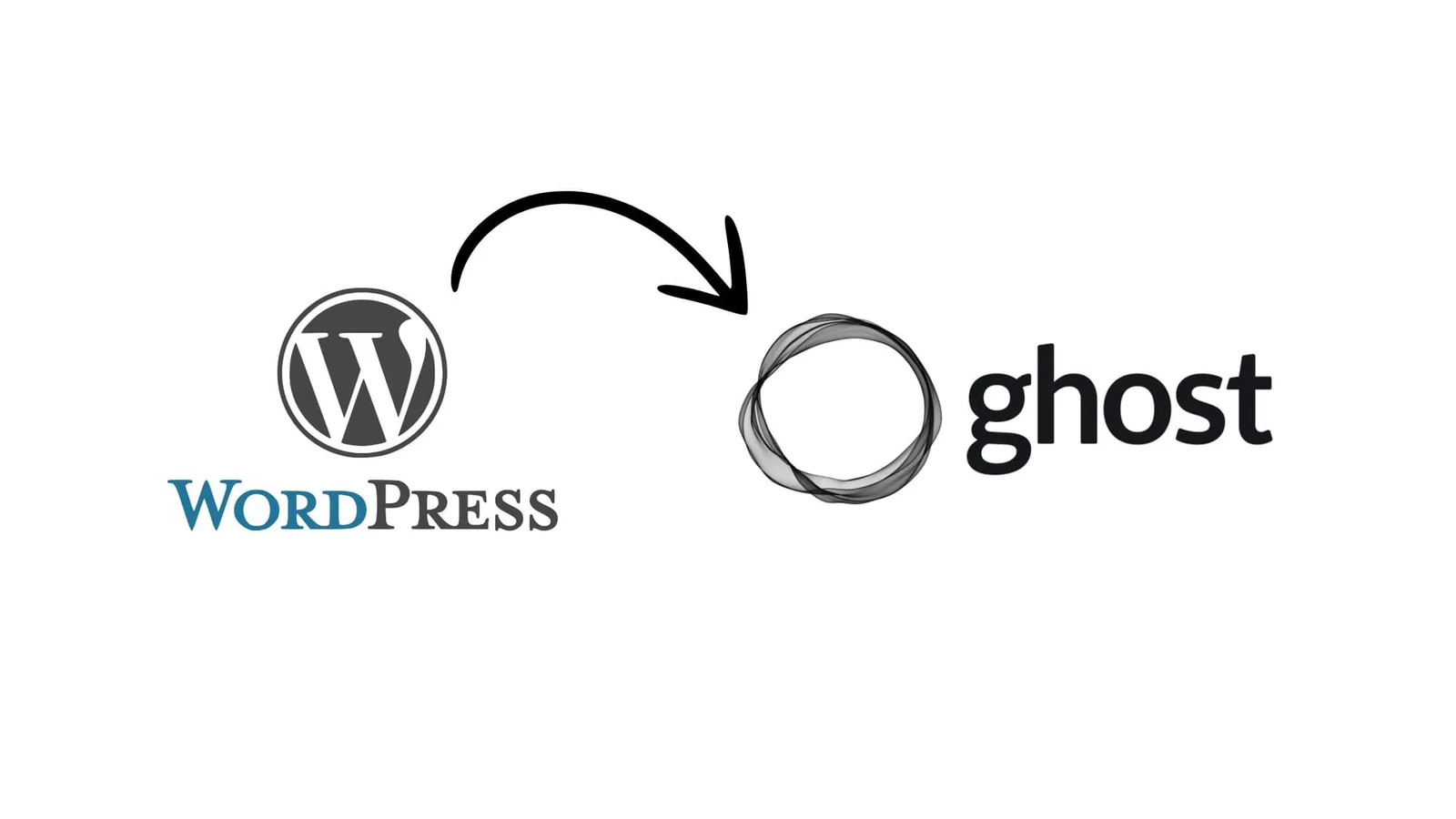
Migrating from WordPress to Ghost can seem intimidating, but by following the right steps the process is simple and straightforward.
Ghost offers several ways to migrate your content, including an assisted option for Ghost(Pro) users as well as an export plugin for a manual migration.
Here's a step-by-step guide to a successful migration:
1. Choose your migration method
- WordPress export plugin: For a hands-on approach, you can use the Ghost export plugin to extract the content from your WordPress site. This option is ideal if you opt for managed hosting with Abstract27 — we'll handle everything for you.
- Ghost(Pro) migration service: If you have a yearly Creator, Team or Business subscription with Ghost(Pro), you can use their migration service.
2. Export your WordPress content

- Install the "Ghost Export" plugin from the WordPress dashboard by going to Plugins > Add. Search for Ghost Export, install it and activate it.
- Go to Tools > Export to Ghost to prepare the content for export. Follow the instructions, which set out the types of content included in the export (posts, pages, categories, tags, authors, images).
- In the Export to Ghost section, click Download Ghost File. A zip file containing your content will be downloaded.
💡
Pro tip
If your site contains a large amount of data, consider exporting only the posts and pages via a JSON file to avoid issues with images. Then import the images separately afterwards.
3. Organise and prepare your images

- This step is only necessary if you chose the JSON file export method, which doesn't include the images in the exported content.
- You'll need to organise your images in a separate directory and update the URL paths in the JSON file so they match Ghost's structure.
- For sites with a large volume of images, it's recommended to split the files into several zip archives of no more than 100 MB each before importing into Ghost.
💡
Pro tip
Before you continue, you'll need an active Ghost installation. If you haven't set up your site yet, follow the steps in this guide to creating your Ghost CMS site, or get in touch with Abstract27, who will take care of everything for you.
4. Import the content into Ghost
- Log in to Ghost's admin interface, then go to Migration Tools. Select Universal Import and drag your zip file in to import your posts, pages and images.
- If you have several zip files for the images, import them one after another to avoid upload issues.
5. Adapt the URLs and configure your domain
- If you changed domains during the migration, update the URLs in the JSON file so they match your new Ghost domain.
- Make sure that all registered authors reset their passwords before logging in to Ghost for the first time.
6. Carry out the final checks
- Review the imported content to make sure everything transferred correctly.
- Set up the necessary redirects from your old WordPress site to your new Ghost site, using Ghost's redirect tools for a seamless transfer.
With these steps, you can easily migrate from WordPress to Ghost while preserving the integrity of your content and moving to a higher-performing platform.
How do you set up your new Ghost site after the migration?
Once your content has been migrated to Ghost, it's time to configure your site to make it operational and tailored to your needs.
Here are the key steps to customise and optimise your Ghost site:
1. Configure the basic settings
- Go to Settings > General in Ghost's admin interface to set the essentials such as your site title, description, language and time zone.
- Also add a cover image and a logo to reinforce your branding. These will appear on your home page and in posts shared on social media.
2. Customise your site theme
- Ghost offers a gallery of free and premium themes suited to a range of site styles. To choose a theme, go to Settings > Design, then select and install a theme that matches your brand.
- You can also customise your theme further with custom CSS or, if you have technical skills, access the theme files directly for more advanced changes.
3. Set up your pages and navigation
- In the Pages section, create essential static pages such as an "About" or "Contact" page.
- Go to Design > Navigation to organise your site's menu. Add the main pages along with your content categories so visitors can navigate easily.
4. Enable the monetisation and subscription features
- Ghost includes built-in tools for newsletters and paid subscriptions, perfect for building and monetising your audience. In Settings > Members, enable the subscription option, set up your pricing and connect a payment gateway such as Stripe.
- Go to Settings > Email to set up your newsletters so you can communicate directly with your subscribers.
5. Connect analytics tools and integrations
- To track your site's performance, you can integrate analytics tools such as Plausible or Google Analytics. Go to Settings > Code injection to add the tracking code provided by the tool of your choice.
- Ghost also supports a range of integrations to enrich your site. For example, you can add Disqus for comments or integrate forms with tools like Tally.
6. Set up redirects and SEO
- In Settings > SEO and social, configure the meta tags for SEO, such as the title, description and social-share images.
- Use Ghost's redirect tool to redirect old WordPress URLs to the new Ghost URLs, which preserves your search ranking and avoids 404 errors.
These steps will help you set up an optimised Ghost site, ready to engage and monetise your audience.
FAQ: Migrating from WordPress to Ghost CMS
1. Can I keep my current domain during the migration?
Yes, you can keep your current domain. You simply need to configure the DNS so that it points to your Ghost site. You can also use Ghost's redirect tools to redirect old WordPress URLs to their new URLs on Ghost, preserving your SEO and avoiding 404 errors.
2. Can I import every type of content from WordPress to Ghost?
Ghost's export plugin supports posts, pages, categories, tags, authors and images. However, some content such as shortcodes, custom post types and binary files isn't transferred. For these items, you may need to recreate them manually or find suitable alternatives within Ghost.
3. Are WordPress plugins compatible with Ghost?
No, Ghost doesn't support WordPress plugins. However, Ghost offers many native integrations for essential features such as newsletters, paid subscriptions and analytics. Third-party tools, such as Stripe for payments or Tally for forms, can easily be added.
4. How do I handle images during the migration?
During the export, the images are included in a zip file. You'll need to organise the images into folders and update their paths in the JSON file so they import correctly into Ghost. For sites with many media files, it's advisable to split the images into several zip files to avoid import issues.
5. What are the costs of Ghost compared with WordPress?
Ghost offers managed hosting with Ghost(Pro), but solutions such as Abstract27 offer more competitive pricing and greater flexibility. Unlike WordPress, where costs can pile up with plugins and extensions, Ghost offers a simpler cost model with built-in features, particularly for newsletters and paid subscriptions.
6. What support options are available if I run into problems during the migration?
Ghost has comprehensive documentation and an active community to help you. If you use Ghost(Pro), Ghost support is included in your subscription. With Abstract27, you also benefit from 24/7 support — ideal for technical questions or assistance during the migration process.
7. Can I go back to WordPress after migrating to Ghost?
Yes, it's possible to go back to WordPress, but this would require a manual process of exporting your content from Ghost and importing it into WordPress. Note that Ghost-specific customisations and formats might not transfer directly to WordPress.
Conclusion
Migrating from WordPress to Ghost is a strategic decision for content creators looking for simplicity, speed and performance.
Ghost, built on the modern Node.js technology, offers a platform dedicated to creating and monetising content, with built-in features for newsletters, paid subscriptions and much more.
Unlike WordPress, Ghost focuses on the essentials: delivering a smooth, fast publishing experience without the bloat of plugins and the headaches of maintenance.
By choosing managed hosting like Abstract27, you benefit from competitive pricing, 24/7 support, and built-in backup and security tools.
This lets you migrate easily and unlock the full potential of your new site, without worrying about the technical side.
Related articles

How to Add a Language Switcher in Ghost CMS
Learn how to seamlessly add a language switcher to your Ghost CMS site for a better user experience and improved multilingual SEO.

Common Ghost CMS Issues and How to Fix Them (2026)
Common Ghost CMS issues and their solutions in 2026: fix theme, install, 502/503, database, email and SSL errors, or skip the whole list with managed hosting.

10 Ways to Optimise Your Ghost Website for SEO (2026)
10 ways to optimise your Ghost CMS website for SEO in 2026: built-in metadata, sitemaps, site speed, structured data, Core Web Vitals and fast hosting.
14-day free trial · No credit card